Workers
Register workers one by one or from Excel, use task tags, and deactivate workers without losing history.
Who workers are
Workers are the people who do the work on site: cleaners, technicians, security staff, and so on. They do not use this admin console. They use their phone to scan asset QR codes, run checklists, and complete tasks. See Worker app.
Before a worker can sign in, you register them here. Every inspection and task they finish is then recorded under their name.
Open Workers in the sidebar to see the workers of the current site. You can search by name and use Task filter to show only workers with a certain task tag.
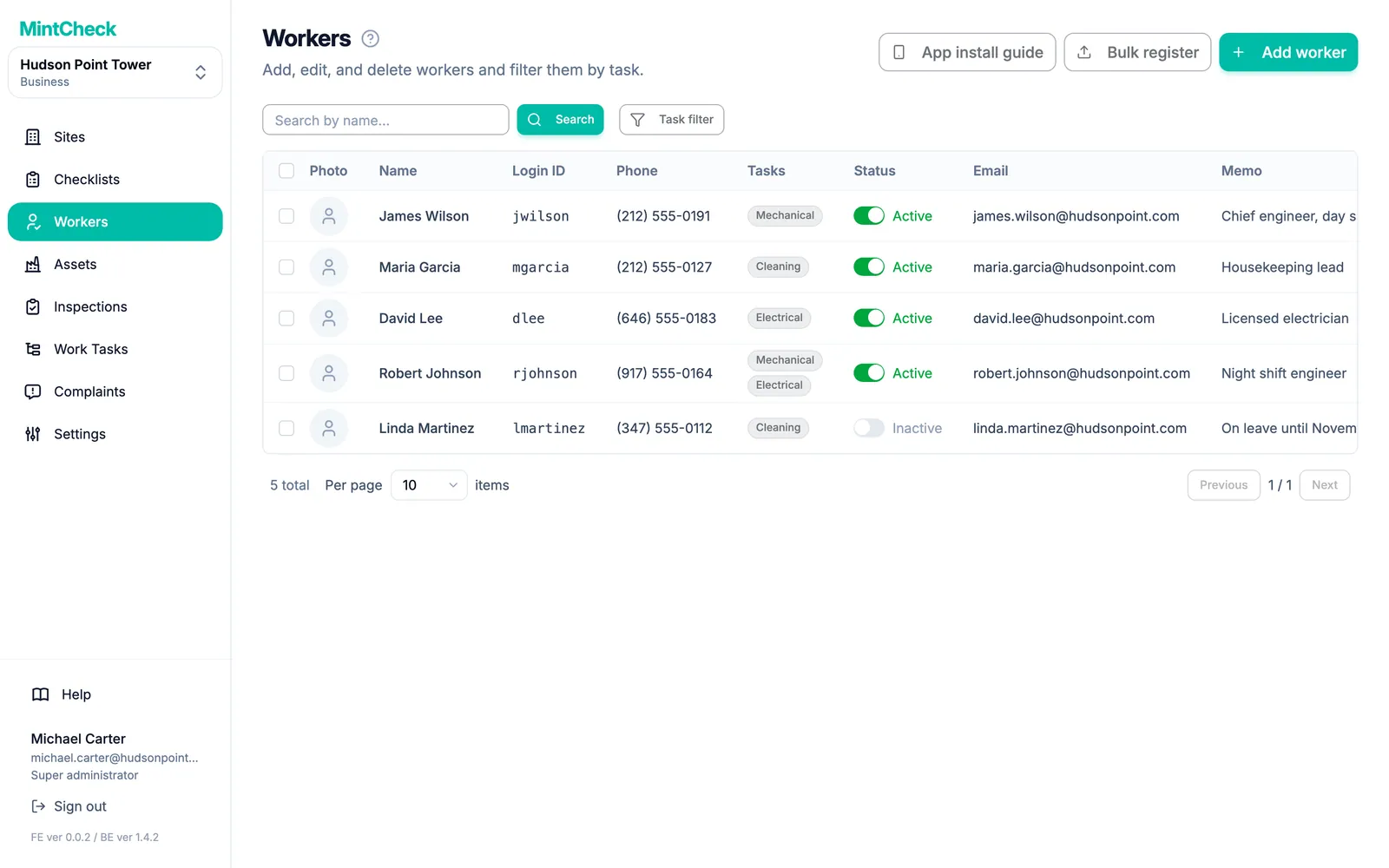
Add a worker
- Go to Workers and click Add worker.
- Fill in the form:
- Photo: optional. It helps you recognize people in records.
- Login ID (required): 4 to 30 characters. Use letters, numbers, and
._-, for examplekim.jh. It cannot be changed later. - Name (required).
- Phone: optional. Enter digits only, without spaces or dashes. If you add it, the worker can also sign in with this number instead of the login ID.
- Tasks: task tags, such as "Cleaning" or "Electrical". Pick existing tags or type a new one.
- Email and Memo: optional.
- Click Add.
- Tell the worker their login ID or phone number. They use it the first time they scan a QR code.
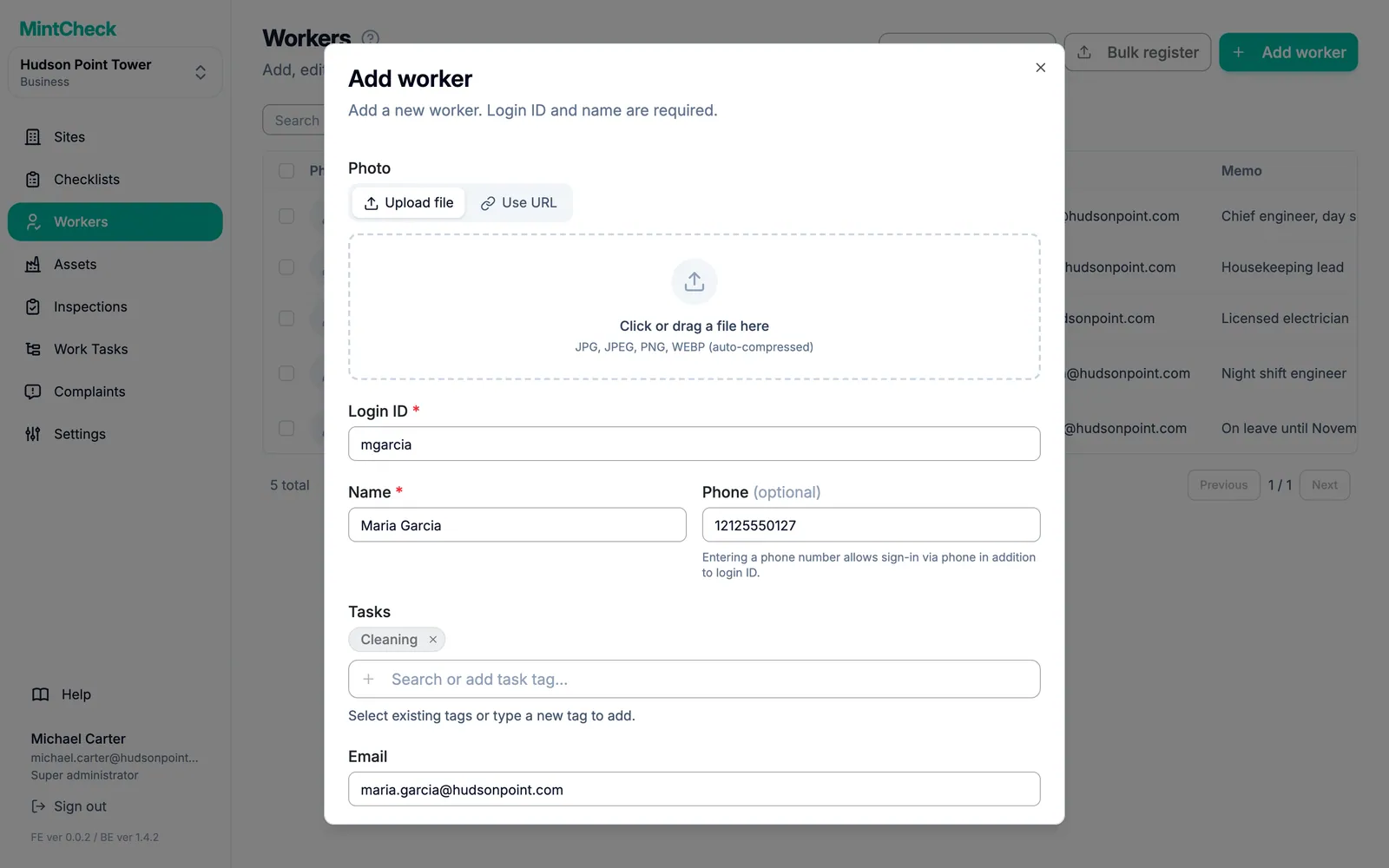
To change a worker's details later, click the worker's row. The Edit worker window opens. Change what you need and click Save.
Register many workers from Excel
If you have a long staff list, register everyone at once with an Excel file.
- Go to Workers and click Bulk register.
- Click Download template. An Excel file downloads.
- Fill in one row per worker. The name and phone number are required. Write task tags separated by commas, for example
Cleaning, Sanitation. Email and memo are optional. - Save the file. Back in MintCheck, upload it (xlsx or xls).
- MintCheck checks every row and shows the result. Rows with problems are marked, with the reason. Fix them in the file and upload again if needed.
- Click the register button to add the workers.
In the Excel upload, each worker's phone number also becomes their login ID.
Help workers install the app
Workers use the MintCheck app: they stay signed in, scan QR codes right in the app and get notifications for their tasks. Send them the install link so they can get the app quickly. Until they install it, they can work in the phone browser.
- Go to Workers and click App install guide.
- The Worker app install guide window opens with a QR code and a short link. The link opens the App Store on an iPhone and Google Play on an Android phone.
- Share it in the way that suits your team:
- Let workers scan the QR code on your screen. To print it, click Download under the QR code to save it as an image.
- Click Copy link to copy only the link.
- Click Copy message to copy a short message with the link and how to sign in. Paste it into a text message or a group chat.
After installing, workers open the app and scan the site login QR or an asset QR code. They sign in with the same login ID or phone number as before. See Worker app.
Task tags
A task tag describes what a worker does, such as "Cleaning", "Security", or "Electrical". A worker can have several tags.
Tags are useful in two ways:
- Finding people. Filter the worker list by tag to see, for example, all cleaners.
- Assigning work to a group. On plans that support it, you can assign a work task to a tag. Everyone with that tag sees the task and any of them can complete it. See Work tasks and Plans and billing.
Keep tag names short and consistent. "Cleaning" and "Cleaner" would count as two different tags.
Deactivate a worker
Workers are never removed from MintCheck. When someone leaves or stops working at the site, you set them to inactive. They can no longer sign in, but all their past inspections and tasks stay in the records.
There are two ways:
- In the list, turn off the switch in the Status column. It shows Inactive.
- Or tick one or more workers, click Delete above the list, and confirm. The selected workers are set to Inactive.
If the person comes back, turn the switch on again. The worker is Active and can sign in with the same login ID.