QR codes
Learn each kind of QR code, then download, print, and put up labels for your assets.
Why QR codes matter
In MintCheck, the QR code is the door to an asset. A worker scans it to run a checklist or finish a task. A visitor scans it to report a problem, without installing anything. Nobody has to type a web address: the MintCheck app or any phone camera opens it.
MintCheck creates the QR codes for you. Your job is to print them and stick them where people will see them.
The kinds of QR codes
Each QR code opens a different screen for a different person. Put up only the ones you need.
| QR code | Where you find it | Who scans it | What it opens |
|---|---|---|---|
| Asset QR (For all workers) | Asset detail page, QR codes | Any registered worker | The worker screen for this asset, after the worker signs in |
| Personal worker QR | Asset detail page, Create tab | One specific worker | The same screen, with that worker already signed in |
| Complaint QR code | Asset detail page, after you turn on the complaint box | Anyone, such as visitors or tenants | A form to send a complaint with photos |
| Public logbook QR | Asset detail page, when Anyone can fill is on | Anyone | Logbook checklists only, without signing in |
| Site login QR | Site dashboard | Workers of the site | Worker sign-in, then the worker app home |
For the complaint QR, see Complaint box. For the logbook QR, see Logbooks. For the site login QR, see Site login QR.
Find, download, and print an asset's QR codes
- Open Assets and click the asset.
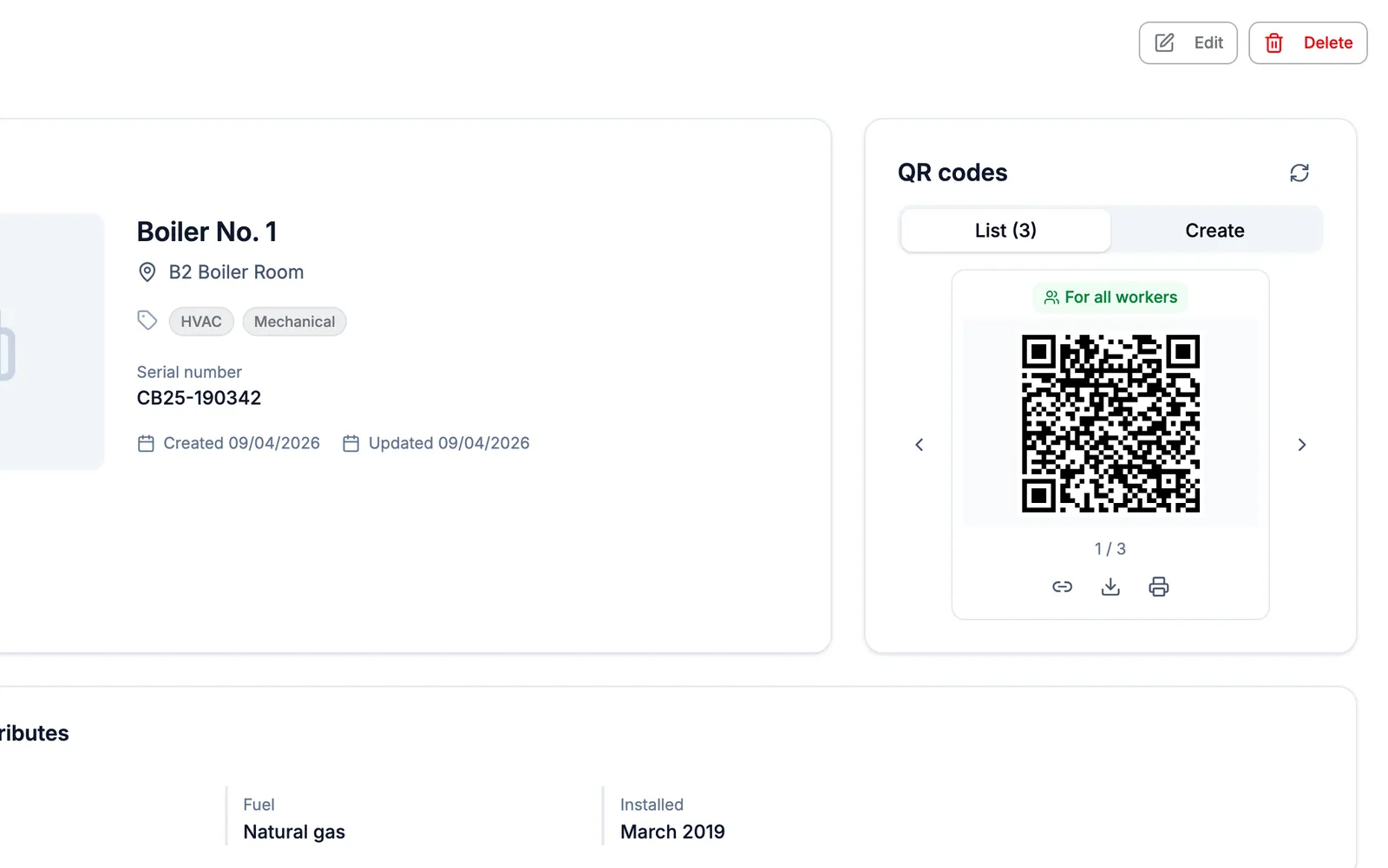
- Find QR codes in the Asset info card.
- On the list tab, use the arrows to move between the QR codes of this asset. The label shows For all workers or the worker's name.
- Use the buttons under the QR code:
- Download saves the QR code as an image.
- Print opens a print page with the asset name and location.
- The link button copies the web address, so you can send it in a message.
To create a personal worker QR:
- Click the Create tab.
- Click Select worker and choose the worker.
- The new QR code appears on the list tab with the worker's name.
To remove a personal worker QR, show it on the list tab and click Delete. The asset QR for all workers cannot be deleted.
Print many QR codes at once
When you set up a new site, you usually need a QR code for every asset. You can print them all in one go.
- Open Assets.
- Choose which assets to print:
- To print some assets, tick their checkboxes and click Print QR.
- To print every asset in the list, tick nothing and click Print all QR. Your current search and tag filter are applied, across all pages.
- In Print QR codes, choose Paper size (A4, A5, or Letter) and QR codes per row (1 to 4).
- Check the Preview. Each label shows the QR code, the asset name, and the location.
- Click Print.
These labels use the asset QR for all workers. Complaint and logbook QR codes are printed one by one from each asset's detail page.
Tips for sticking QR labels
- Put the label at chest height, where a person can hold a phone close to it.
- Stick it on the asset itself or right next to it, so the worker knows which asset it belongs to.
- Avoid curved, dirty, or very shiny surfaces. Glare can stop the camera from reading the code.
- Outdoors or in wet areas, use waterproof label paper or a laminated sheet.
- Keep worker QR codes and the complaint QR code apart. Visitors should only see the complaint QR code.
- After you stick a label, scan it once with your own phone to make sure it opens the right asset.