Site login QR
Print or share one QR code so workers can sign in to a site without scanning an asset.
What the site login QR is for
Workers usually sign in by scanning the QR code on an asset. But sometimes a worker needs to sign in before they stand in front of an asset. For example, they want to check their tasks at the start of the shift, or install the MintCheck app for the first time.
The site login QR solves this. It is one QR code for the whole site. A worker scans it with a phone, signs in, and lands on the worker app home screen with their tasks and history. No asset QR is needed.
Use it when:
- A new worker signs in for the first time.
- Workers want to see My tasks before they go on their rounds.
- You want one sign-in poster at the entrance, the staff room, or the security desk.
Open, print, or share the QR
- Open the site's dashboard. You can click the site card in Sites, or switch to the site in the sidebar.
- At the top right, click Worker sign-in QR. A window opens with the QR code.
- Check the site name under the QR code. It must be the site your workers belong to.
- Choose what to do with it:
- Click Print to print a page with the site name and the QR code.
- Click Download to save the QR code as an image. You can send the image by message or add it to your own poster.
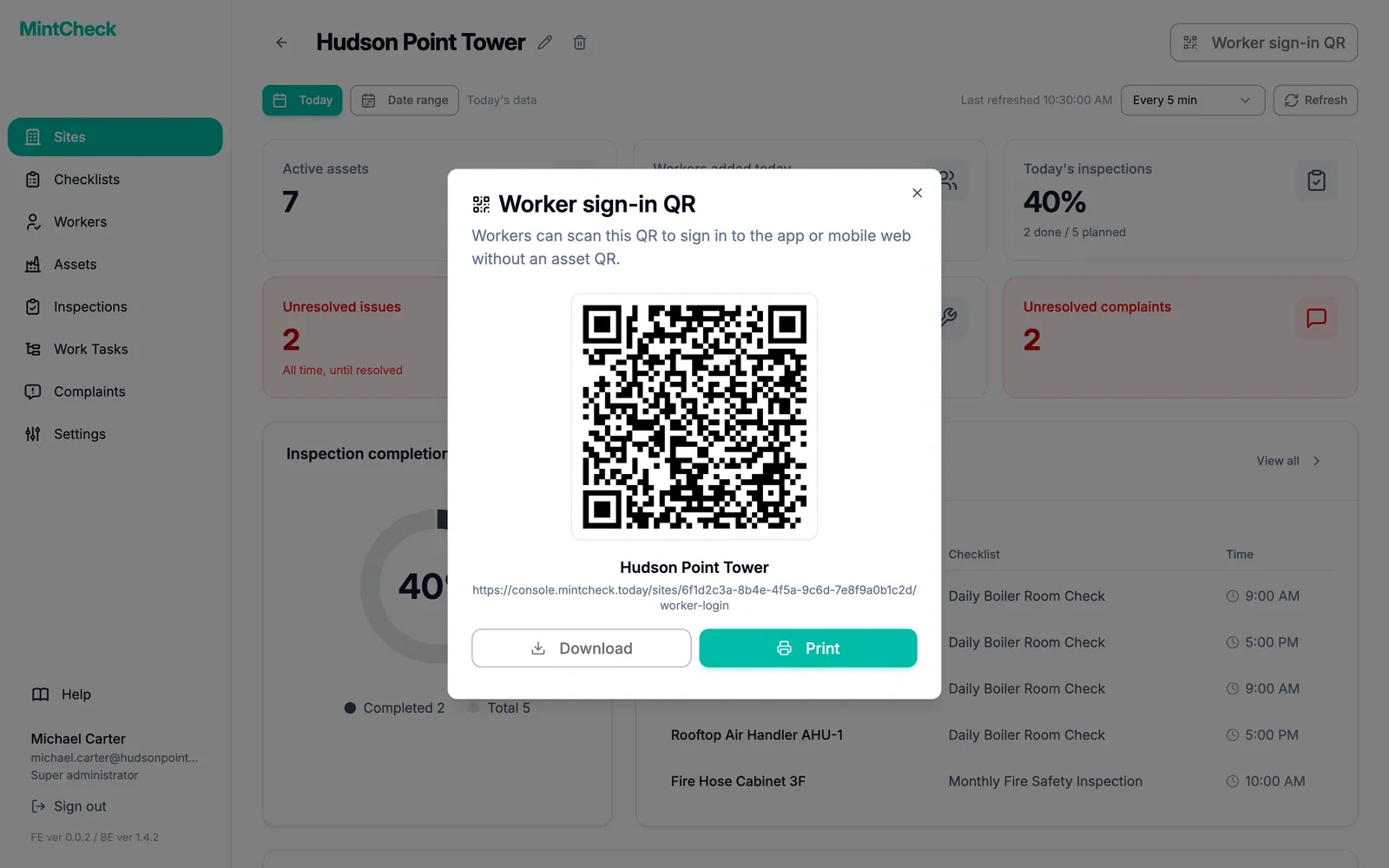
The web address of the QR code is also shown under the site name. You can copy it and send it to a worker, who can open it on their phone instead of scanning.
How workers sign in
- The worker scans the QR code with the phone camera or the MintCheck app.
- A sign-in page opens with the site name at the top.
- The worker chooses ID or Phone.
- The worker enters their Login ID or Phone number, exactly as you registered it, and taps OK.
- The worker app opens on My tasks.
Only workers you registered for this site can sign in. If the details don't match, the worker sees a message asking them to contact their administrator. Workers you have deactivated cannot sign in. To register workers, see Workers. To learn what workers can do after signing in, see The worker app.
A sign-in belongs to one site
Each site has its own site login QR. A worker who signs in with it is signed in to that site only.
If the same worker then scans an asset QR from a different site, MintCheck does not reuse the sign-in. It shows a message that the QR code belongs to a different site and asks the worker to sign in again as a worker of that site. The new sign-in replaces the old one. This keeps each site's checklists and tasks visible only to its own workers.
Scanning another asset QR from the same site does not ask for a new sign-in.
Site login QR and asset QR codes
| QR code | Where you find it | What it does |
|---|---|---|
| Site login QR | Site dashboard | Signs a worker in to the site and opens the worker app home screen. |
| Asset QR | Each asset's detail page | Opens that asset's checklists and tasks. Asks for sign-in if needed. |
To print QR codes for your assets, see QR codes.