Administrators
Add sub-admins for your sites, manage their status and passwords, and see what they can access.
Super admins and sub-admins
MintCheck has two kinds of administrators:
- Super administrator: manages the whole organization. The person who signs up is the first super admin. Super admins can see every site, add sites and administrators, and manage the plan and billing.
- Administrator: a sub-admin who manages one site. A sub-admin works with the checklists, assets, workers, inspections, work tasks, and complaints of that site only.
Use sub-admins when each site has its own manager. For example, give the manager of each building their own login for that building.
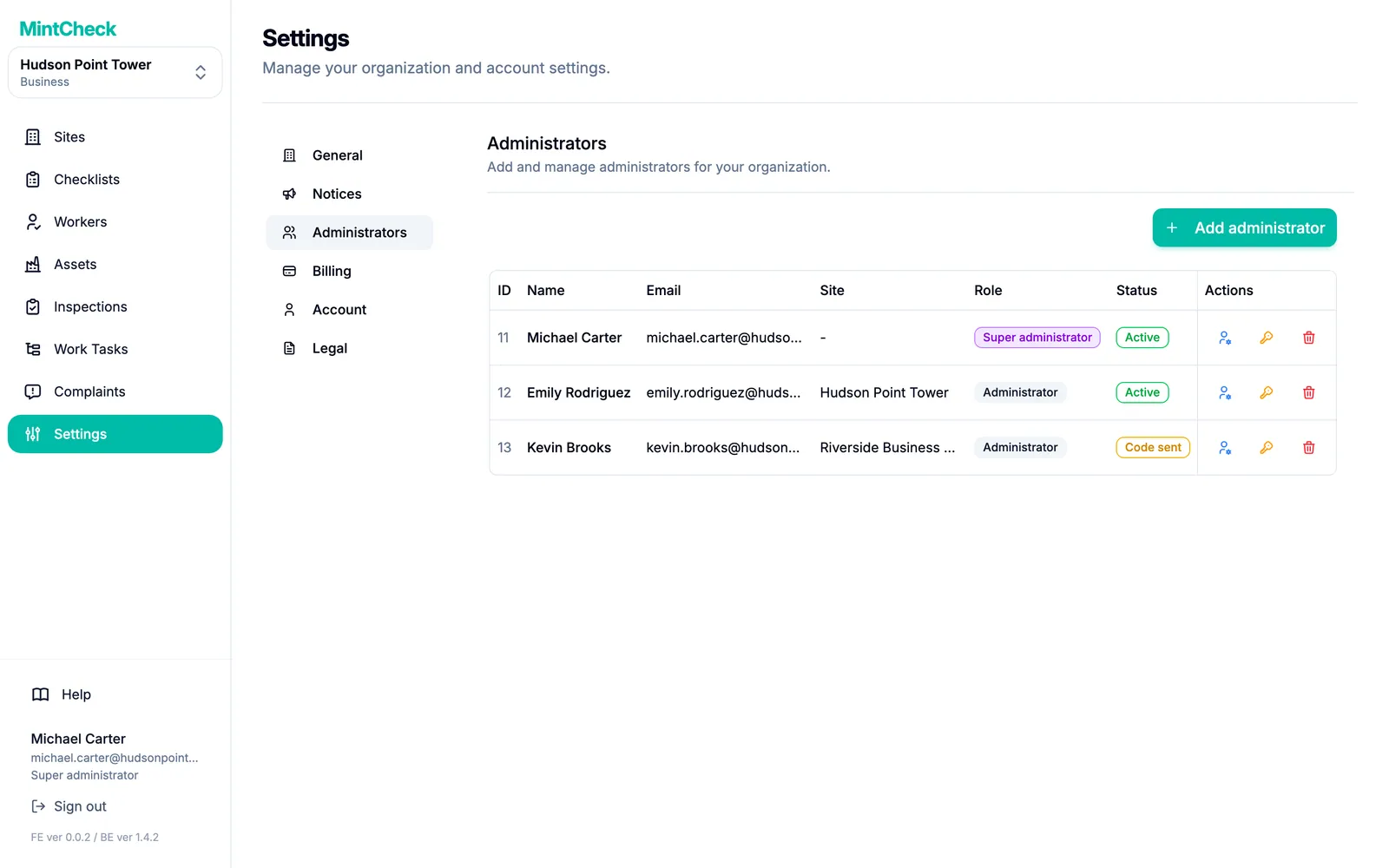
Only a super admin can add or change administrators, in Settings → Administrators. You need at least one site before you can add an administrator.
Add an administrator
- Go to Settings → Administrators.
- Click Add administrator. A form opens.
- Enter the person's Name and Email.
- Set a Temporary password. It needs at least 8 characters, with letters and numbers.
- Choose the Site this person will manage.
- Click Send invite.
MintCheck sends a verification link to that email address. The new administrator appears in the list with the status Awaiting email verification.
Tell the new administrator the password you set, in person or through another safe channel.
What the new administrator does
The new administrator only needs to do two things:
- Open the email from MintCheck and click the verification link.
- Sign in to MintCheck with their email address and the password you gave them.
After they verify, their status changes to Active. They can change the password to one of their own at any time in Settings → Account.
Manage an administrator
Each row in the list shows the administrator's Name, Email, Site, Role, and Status. Use the icons in the Actions column:
- Change status: choose a New status, for example Inactive to stop someone from signing in for a while. You can also change the role here, for example to make a sub-admin a super admin.
- Change password: set a new password when someone has forgotten theirs. Tell them the new password yourself.
- Delete administrator: remove the person from your administrators.
What sub-admins can and cannot do
A sub-admin signs in to the same MintCheck console as you, but sees less:
- They see only the site assigned to them, not your other sites.
- They can manage the checklists, assets, workers, work tasks, inspections, and complaints of that site.
- They cannot add sites.
- They cannot see or change the plan, payment cards, or invoices.
- In Settings, they only see Account, where they can change their own password.
When a sub-admin tries something that needs a bigger plan, MintCheck asks them to contact the super admin. See Plans and billing and Settings.