Worker app
How workers sign in with a phone, run inspections, finish tasks, and use their home screen.
Before you start
This page is for workers. Your manager can print it or send you the link.
With MintCheck you use your own phone to record inspections and finish tasks. You do not need a password. You need:
- A phone with a camera and an internet connection.
- The login ID or phone number your manager registered for you.
Everything starts with a QR code. Point your phone camera at the QR code on an asset and tap the link that appears.
Sign in
- Scan the QR code on the asset with your phone camera.
- The Worker sign-in screen opens. Choose ID or Phone.
- Enter your login ID, or your phone number with digits only.
- Tap OK.
After that, you stay signed in while you move from asset to asset. Scan the next QR code and you go straight to that asset.
Other ways to sign in:
- Personal QR code. Your manager may give you a QR code with your name on it. It signs you in automatically. Keep it to yourself.
- Site login QR. Scan the site's sign-in poster to sign in and open your home screen without standing at an asset. See Site login QR.
Get the MintCheck app
Install the MintCheck app on your phone. Until you do, you can do the same work in the phone browser, but the app makes your work easier:
- Sign in only once. After the first sign-in, the app keeps you signed in, even after you close it or restart your phone.
- Get a notification when a task is assigned to you. When your manager assigns a task to you or to one of your task tags, your phone notifies you right away. If the task has a start time, you also get a reminder 30 minutes before it.
- Get reminders for your checklists. After you complete a checklist once in the app, you get a notification 30 minutes before each scheduled check of that checklist. You can turn each reminder on or off in Notification settings.
To start, open mintcheck.today/app on your phone. It takes you to the App Store on an iPhone and to Google Play on an Android phone. You can also search for MintCheck in the store. If you sign in on the asset screen in the phone browser, you can also tap Install app on the banner there. Open the app and sign in the same way as above. When the app asks for permission to send notifications, allow it. Otherwise you will not receive any notifications.
The asset screen
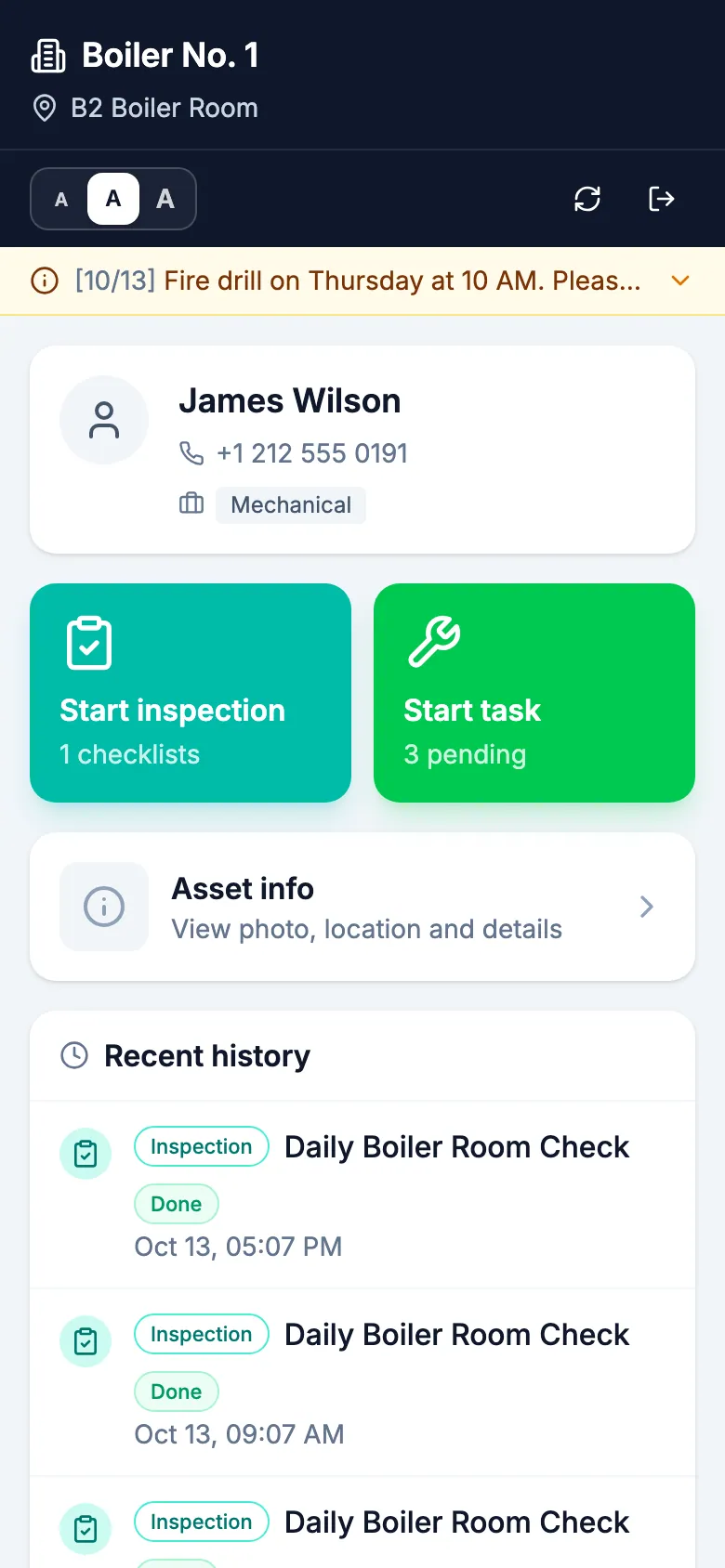
After you sign in, you see the asset screen. At the top are the asset name and location. Below are two big buttons:
- Start inspection: run a checklist for this asset. The button shows how many checklists are ready.
- Start task: see and finish the tasks for this asset.
Below them, tap the Asset info card to see the details your administrator entered (see below). Further down, Recent history lists what you did recently. Tap an item to open it again.
The small bar at the top has three A buttons to make the text smaller or bigger. Your phone remembers your choice. There are also buttons to refresh the screen and to sign out.
View asset info
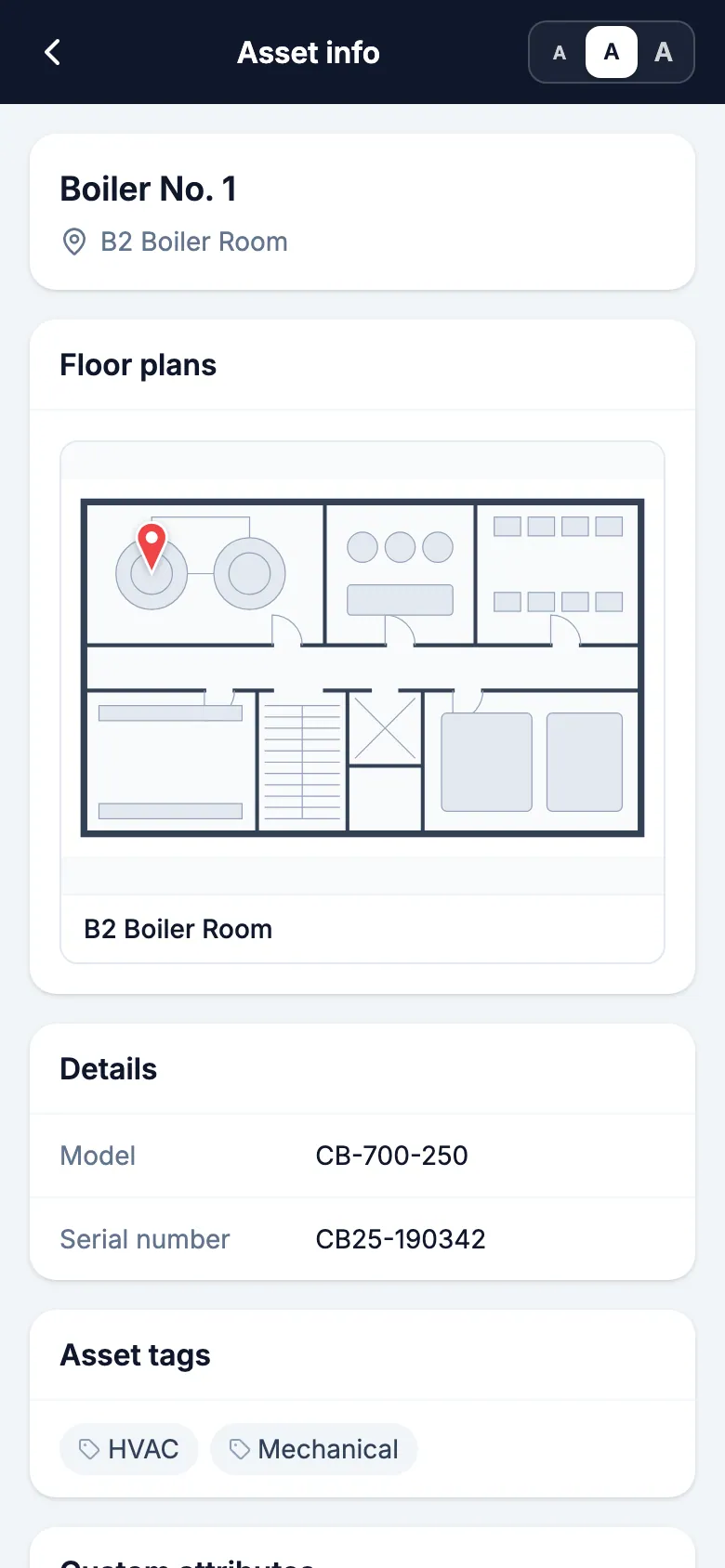
Tap the Asset info card to see everything your administrator entered on one screen: the photo and location, Details such as Model and Serial number, Asset tags, and Custom attributes. If your administrator uploaded floor plans, you also see Floor plans with a pin on the asset's location. Check them when the asset is hard to find.
Tap a photo or floor plan to open it full screen. Spread two fingers or double-tap to zoom in, and drag to look around. When you're done, tap ✕ to close it. To go back to the asset screen, tap the back button at the top left.
Run an inspection
- Tap Start inspection.
- Tap the checklist you want to do. The list shows the checklists for this asset, with today's time slots and how many are already done.
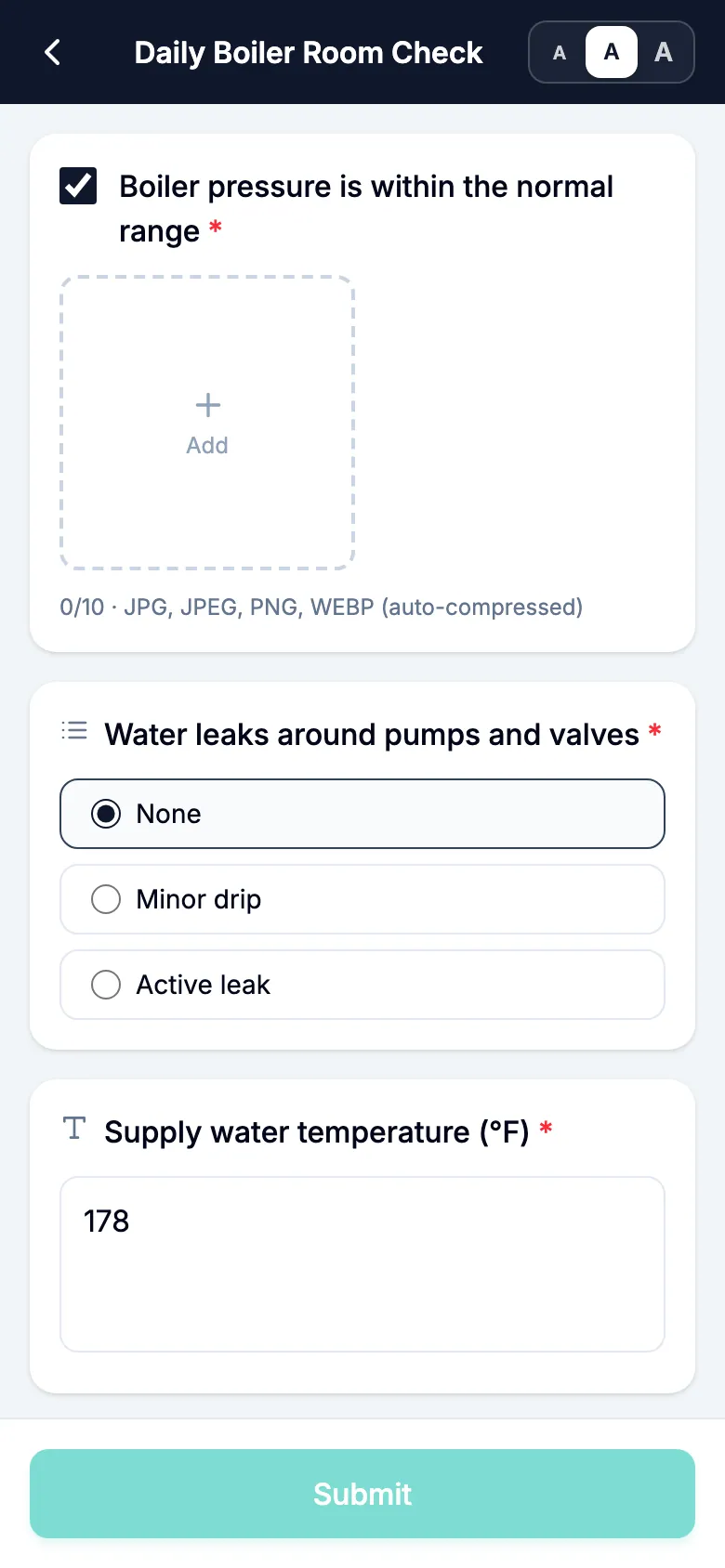
- Answer each item. An item may ask for a check, a short text, a choice, or a photo. Some items say that a photo is required. You cannot submit until you add it.
- At the bottom, choose the overall Inspection result: Normal or Abnormal.
- If you choose Abnormal, describe the problem in Issue details. You can add photos.
- Tap Submit.
If the checklist is not scheduled for today, MintCheck shows Today is not a scheduled day. Tap Record a check anyway to continue, or Go back to leave. A check recorded this way is saved to the history, but it does not count toward today's scheduled inspections.
If every time slot for today is already done, what you see depends on who did it:
- You did it, and the result was normal: MintCheck opens your earlier answers. You can correct them and tap Edit.
- Another worker did it: you can't change their record. The screen only tells you it is done.
- A problem was reported and is not fixed yet: the form opens as a re-inspection (see below).
Check again after a fix
When a reported problem has been fixed, check the asset again so your manager knows it is working. This is a re-inspection. Any worker can do it, not only the person who reported the problem.
- Scan the asset's QR code and open the same checklist.
- If MintCheck sees an unfixed problem, it tells you so, even if the problem was reported on an earlier day. The message shows when it was reported and what the problem was. If today's time slots are not all done yet, tap Continue as re-inspection. If they are all done, the form opens as a re-inspection by itself.
- Answer the items again and choose the result.
- Tap Submit re-inspection.
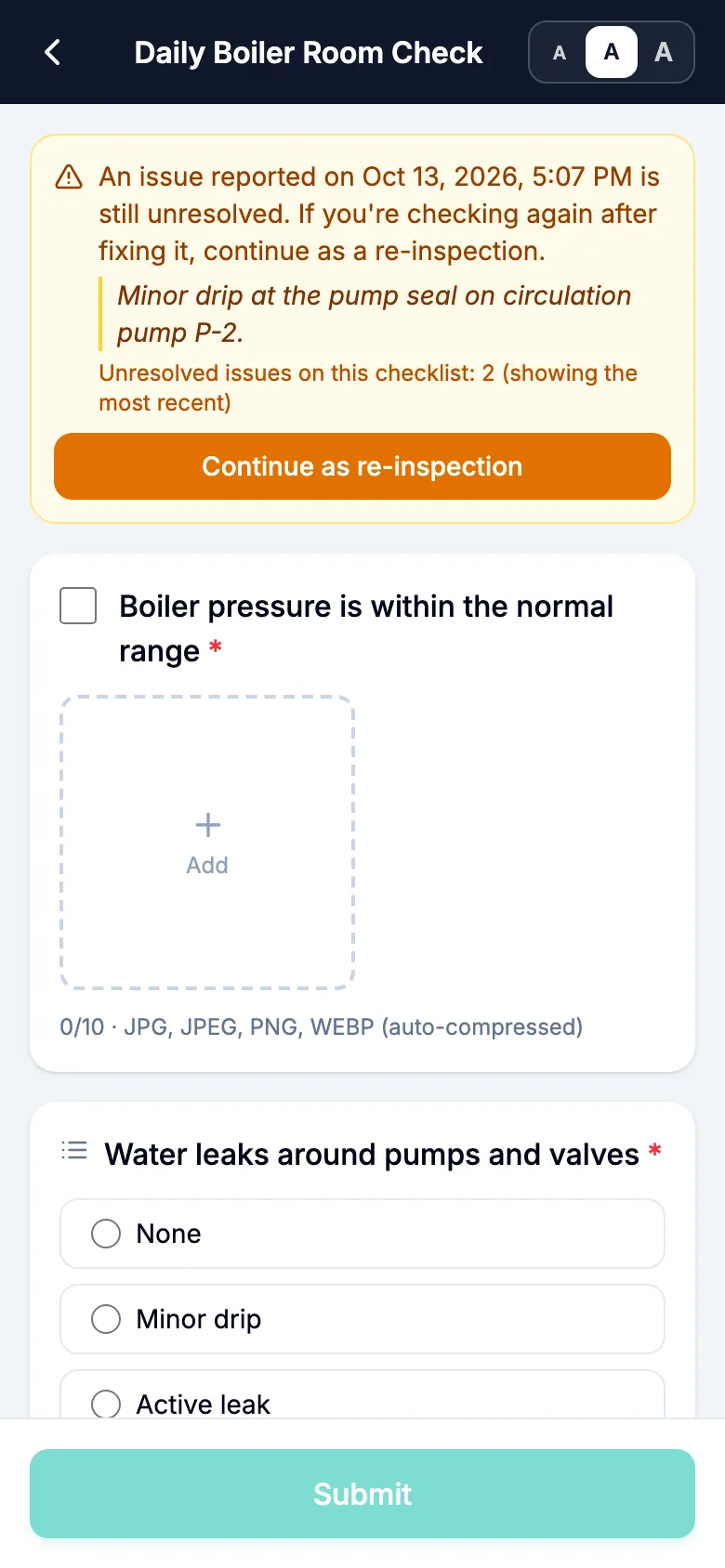
Your re-inspection is saved as a new record. The original problem report and its photos stay as they were. If there are several unfixed problems on the same checklist, MintCheck shows the most recent one first. If you opened a re-inspection by mistake, tap Continue as new inspection to go back to a normal inspection.
You don't always need a separate re-inspection. If your next scheduled inspection of the same checklist on that asset is Normal, MintCheck also marks the earlier problem as fixed. You can't change a submitted problem report to Normal by editing it, but you can still correct its description and photos.
Finish a task
- Tap Start task.
- Tasks given to you personally or to one of your task tags appear first, under Assigned to me. Other tasks for the asset follow. Tasks past their time are marked Overdue.
- Tap a task to read the details and any photos from your manager.
- Optional: write a Completion note (optional) and add Completion photos (optional).
- Tap Complete task.
You can open a completed task again later to change the note or photos.
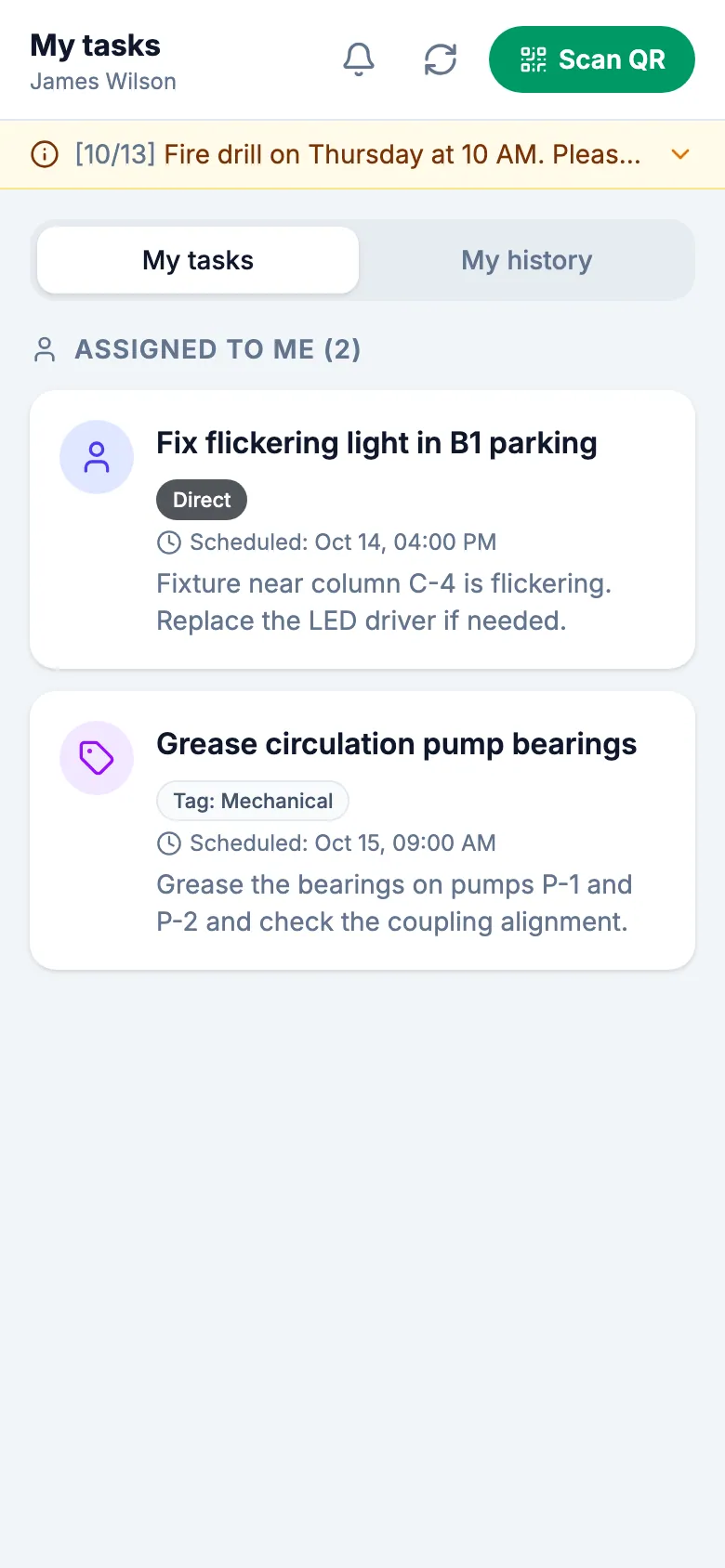
Your home screen
The home screen shows your work without scanning an asset first. You reach it after signing in with the site login QR, or from the house button on the asset screen in the MintCheck app.
- My tasks: tasks assigned to you or to your task tags. Tap one to finish it.
- My history: the inspections and tasks you completed, newest first. A logbook entry shows a Logbook badge instead of a normal or abnormal result.
- Scan QR: scan the next asset. In a phone browser, use your camera app instead.
- The bell button opens Notification settings. In the MintCheck app, you can get a reminder 30 minutes before each scheduled check. Checklists appear there after you have done them once.
If you do not see My tasks with any tasks, your site may not use task assignment. Just scan asset QR codes to work.