Complaints
Review complaints sent through asset QR codes and move them from received to resolved.
Where complaints come from
Members of the public can report a problem by scanning a complaint QR code on an asset, for example a broken hand dryer in a restroom. They describe the issue, can attach up to 3 photos, and submit. The complaint then appears in MintCheck for the administrators of that site.
MintCheck also sends an email to the administrators of that site and to the super administrator when a new complaint arrives, and again whenever its status changes. The email is written in your organization's language and shows times in your organization's time zone. Both are set in Settings → General.
The complaint box is turned on per asset. To set it up and print its QR code, see Complaint box.
Open Complaints in the sidebar to see all complaints for the site you are working in.
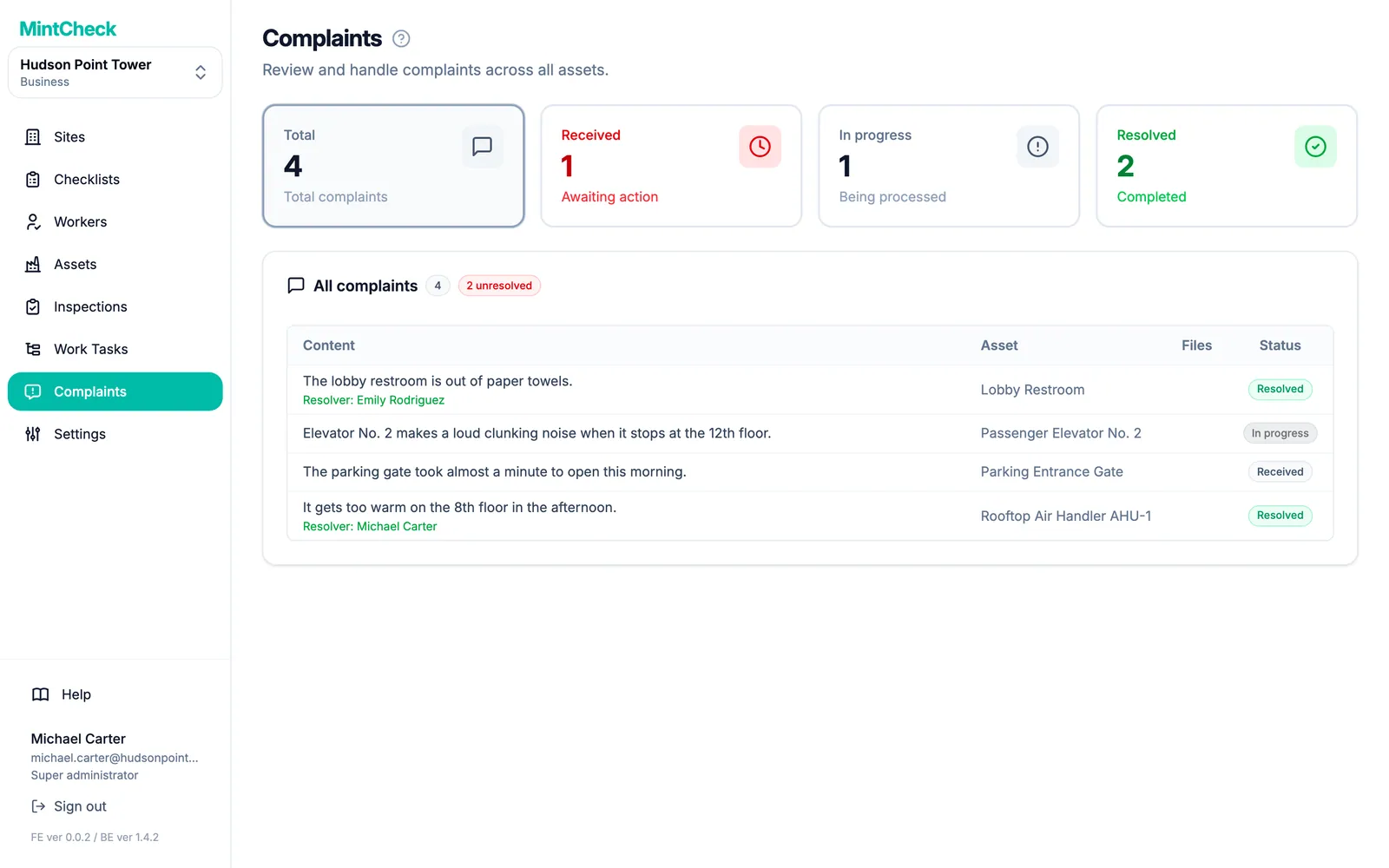
Read the complaint list
At the top of the page there are four cards. Click a card to filter the list:
- Total: every complaint at the site.
- Received: new complaints that nobody has picked up yet.
- In progress: complaints someone is working on.
- Resolved: complaints that are finished.
Each row shows the Content, the Asset it was reported on, the number of attached Files, and the Status. A badge next to the list title shows how many complaints are still unresolved.
Complaint statuses
A complaint moves through three statuses, always in this order:
- Received: the complaint has arrived. This is where every complaint starts.
- In progress: someone has taken it on. You can add notes while you work on it.
- Resolved: the issue is fixed or handled.
You can also skip the middle step and resolve a new complaint directly.
Open and handle a complaint
Click a row to open Complaint details.
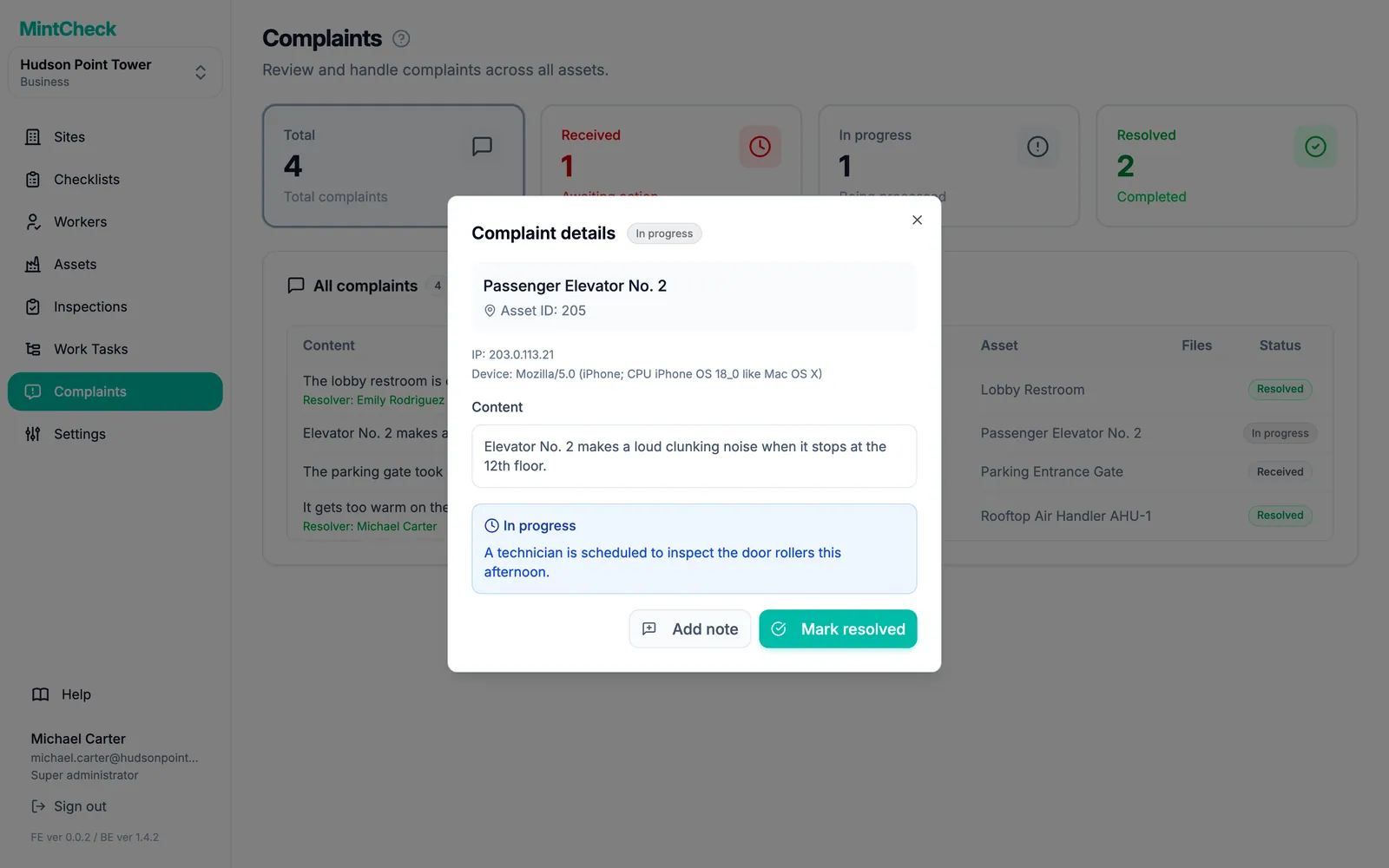
The window shows the asset, the Content, and any attached photos. Click a photo to see it larger. If the person left a phone number or email, it appears under Submitter contact. You can copy it or use it to tell them the result.
To start working on a complaint:
- Click Mark in progress.
- Optionally, enter a Processing note, for example who is assigned or when someone will visit.
- Click Set in progress.
While a complaint is in progress, click Add note to record more updates. Each new note is added after the earlier ones. Earlier notes cannot be edited.
To close a complaint:
- Click Mark resolved.
- Optionally, enter a Resolution note (optional), for example "Replaced the part".
- Click Mark resolved.
The details window then shows who handled the complaint and the notes that were recorded.
Verified and anonymous complaints
Each complaint box works in one of two ways. You choose this in the asset's complaint box settings.
- Anonymous (the default): anyone can submit without giving their name. Contact details are optional. The person only leaves a phone number or email if they want to hear back.
- With identity verification: the person must enter their email address first. MintCheck emails them a 6-digit code, which they must enter within 10 minutes. Only then can they submit. Use this when you want to cut down on spam or need a way to reply.
In both cases, the complaint arrives in the same list and you handle it the same way. For verified complaints, you usually see the email address the person verified under Submitter contact.