Plans and billing
Compare plans, register a card, start a trial, and upgrade or downgrade your plan.
Plans at a glance
Your plan decides how many assets and sites you can have and how you can assign work tasks. Only the super admin can see and change billing, in Settings → Billing.
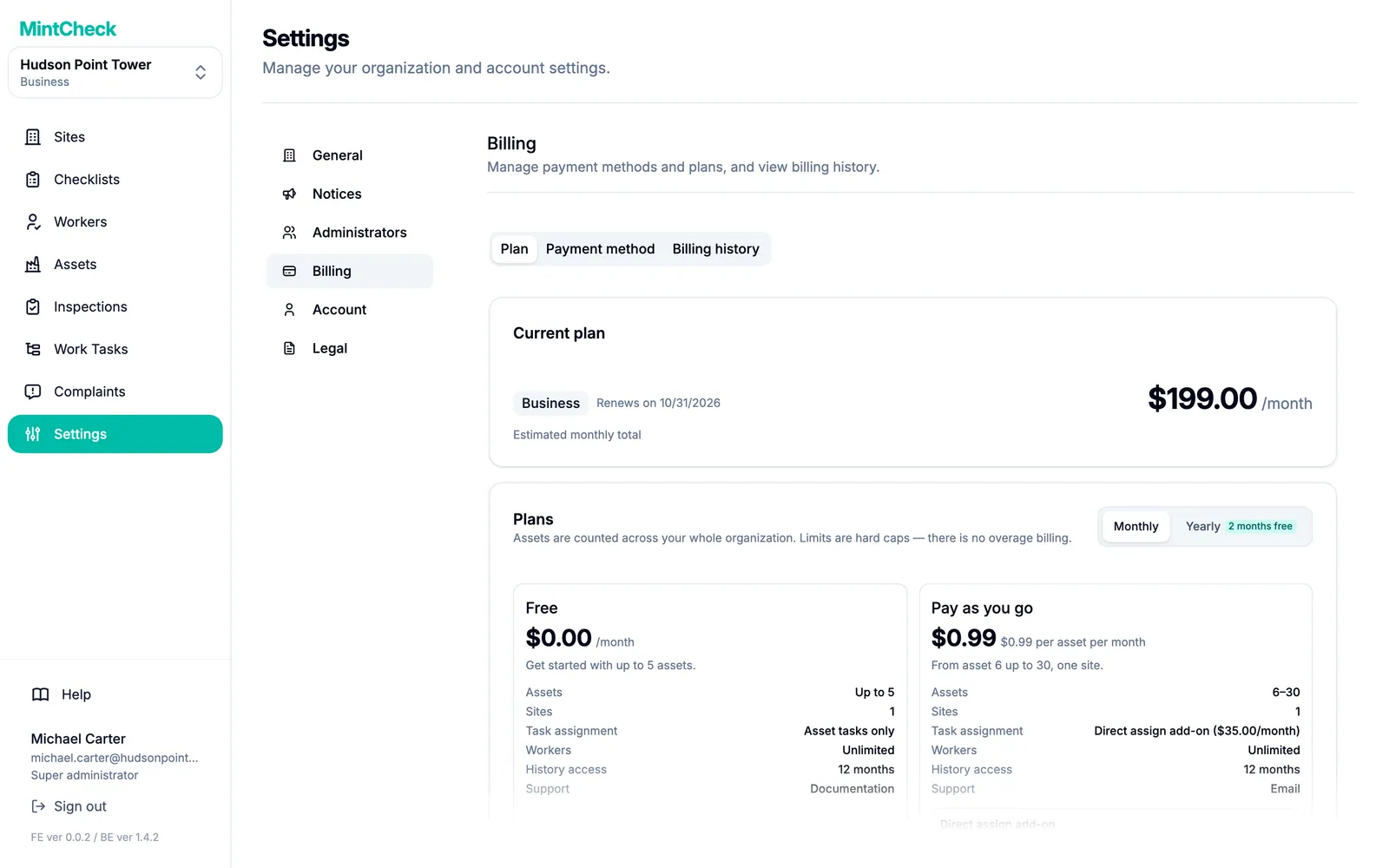
| Free | Pay as you go | Business | Master | |
|---|---|---|---|---|
| Price | $0 | $0.99 per asset per month, first 5 assets free | $199/month or $1,990/year | $299/month or $2,990/year |
| Assets | Up to 5 | 6 to 30 | 31 to 200 | Unlimited |
| Sites | 1 | 1 | 3 | Unlimited |
| Work task assignment | Assets only | Assets, plus specific workers with the $35/month add-on | Assets, specific workers, and tags | Assets, specific workers, and tags |
| Workers | Unlimited | Unlimited | Unlimited | Unlimited |
| History access | 12 months | 12 months | 36 months | Unlimited |
| Support | Documentation | Priority | Priority |
Assets are counted across your whole organization, not per site. The limits are firm: MintCheck never bills you extra for going over. When you reach a limit, you are asked to upgrade instead.
You do not choose Free yourself. While you are on Pay as you go and have 5 assets or fewer, you pay nothing. From the 6th asset on, each asset costs $0.99 per month.
Register a payment card
You can add up to 5 assets without a card. To add a 6th asset, you must register a payment card first. Payments are processed by Stripe. MintCheck does not store your card number.
- Go to Settings → Billing.
- Open the Payment method tab.
- Click Register card.
- Enter your details under Card information.
- Click Register.
To switch cards, click Change card on your registered card and enter the new card details. Your next payment is charged to the new card and the old card is removed. You can't delete the card while you're on a paid plan.
Upgrade or try Business
- Open the Plan tab.
- For Business or Master, choose Monthly or Yearly at the top. Paying yearly gives you 2 months free.
- On the plan you want, click Upgrade.
- Read the confirmation and click Change.
An upgrade starts right away. Your card is charged a prorated amount for the rest of the current billing period.
Free trial. If your organization has never had a trial, the Business card shows Start 14-day free trial. Business is free for 14 days. After that, your registered card is charged $199 per month unless you return to pay as you go before the trial ends. To return to pay as you go, you must be within its limits (1 site and 30 assets), so delete any extra sites and assets you added during the trial first. Each organization can use the trial only once.
Direct assign add-on. On pay as you go, you can turn on Direct assign add-on with the switch on the pay-as-you-go card. It costs $35 per month and lets you assign work tasks to a specific worker. Business and Master already include it. See Work tasks.
Downgrade to a smaller plan
- On the Plan tab, click Downgrade on the smaller plan.
- Click Change.
A downgrade does not happen right away. It takes effect at the end of the current billing period, and there is no refund for the time already paid. Until then, a banner shows the date of the scheduled change. Click Cancel scheduled change if you change your mind.
You cannot move to a plan that is smaller than what you use today. This also applies when you return to pay as you go during a Business trial. If the Downgrade button is greyed out, the text under it tells you why:
- Too many assets: delete assets until you are at or below the smaller plan's limit. The button then becomes available.
- Too many sites: delete sites until you are at or below the smaller plan's limit. A site can be deleted only after you delete its assets and the sub-admins assigned to it. See Sites and the site dashboard.
After you schedule a downgrade, you can't add assets or sites beyond the smaller plan's limits. To add more, click Cancel scheduled change first.
Read-only assets
Sometimes you have more assets than your plan allows, for example when the card payment fails at the end of a Business trial and you return to pay as you go with more than 30 assets. MintCheck never deletes these extra assets. Instead, it makes them read-only.
For a read-only asset, you can still view it, export its data, and delete it. You cannot edit it, run inspections on it, or give it new tasks. The Assets page shows how many assets are read-only. Click View plans to upgrade. Upgrading unlocks the assets immediately.
Billing history
Open the Billing history tab to see every charge, with its Date, Amount, and Status. Click the download button in the Invoice column to save an invoice. Click Export all to download the whole list.
If a payment fails, a banner on the Plan tab asks you to update your card. Register a new card on the Payment method tab to avoid an interruption.