What is MintCheck?
Learn the core ideas in MintCheck, how they connect, and who does what in your organization.
What MintCheck does
MintCheck helps you keep facilities and assets in good shape without paper checklists. You register the equipment, spaces, and vehicles you look after as assets, attach a QR code to each one, and your staff scan that code with a phone to record inspections and finish tasks. Every record is saved with the time, the person, and any photos, so you can see at a glance what was checked and what needs attention.
MintCheck has two sides:
- The admin console (this website). Administrators set things up here and review the results.
- The worker app. Workers use the MintCheck app on their phone (iPhone, iPad or Android). They sign in only once and get notifications for assigned tasks and scheduled checks. Before they install it, they can also scan a QR code with the phone camera and work in the phone browser.
How the pieces fit together
Everything in MintCheck follows the same order. Each step builds on the one before it.
- Organization. Your company's account. It holds your plan, payment card, language, and administrators.
- Sites. A building or location you manage, such as an office tower or a factory. Most other data belongs to one site. Use the site selector at the top of the sidebar to switch between sites.
- Checklists. A list of inspection items (for example, "Check the pressure gauge"). Each checklist has a schedule, such as daily at 09:00, or it can be done anytime.
- Assets. The things you inspect: a boiler, a fire extinguisher, a restroom. Each asset gets its own QR code. You link one or more checklists to each asset.
- Workers. The people who do the inspections and tasks. You register them with a login ID and name.
- Scanning. A worker scans an asset's QR code, signs in, and completes the checklists that are due for that asset.
- Results. Completed inspections appear under Inspections. Follow-up jobs are managed under Work Tasks. Visitors can also scan a QR code to send a complaint, which you review under Complaints.
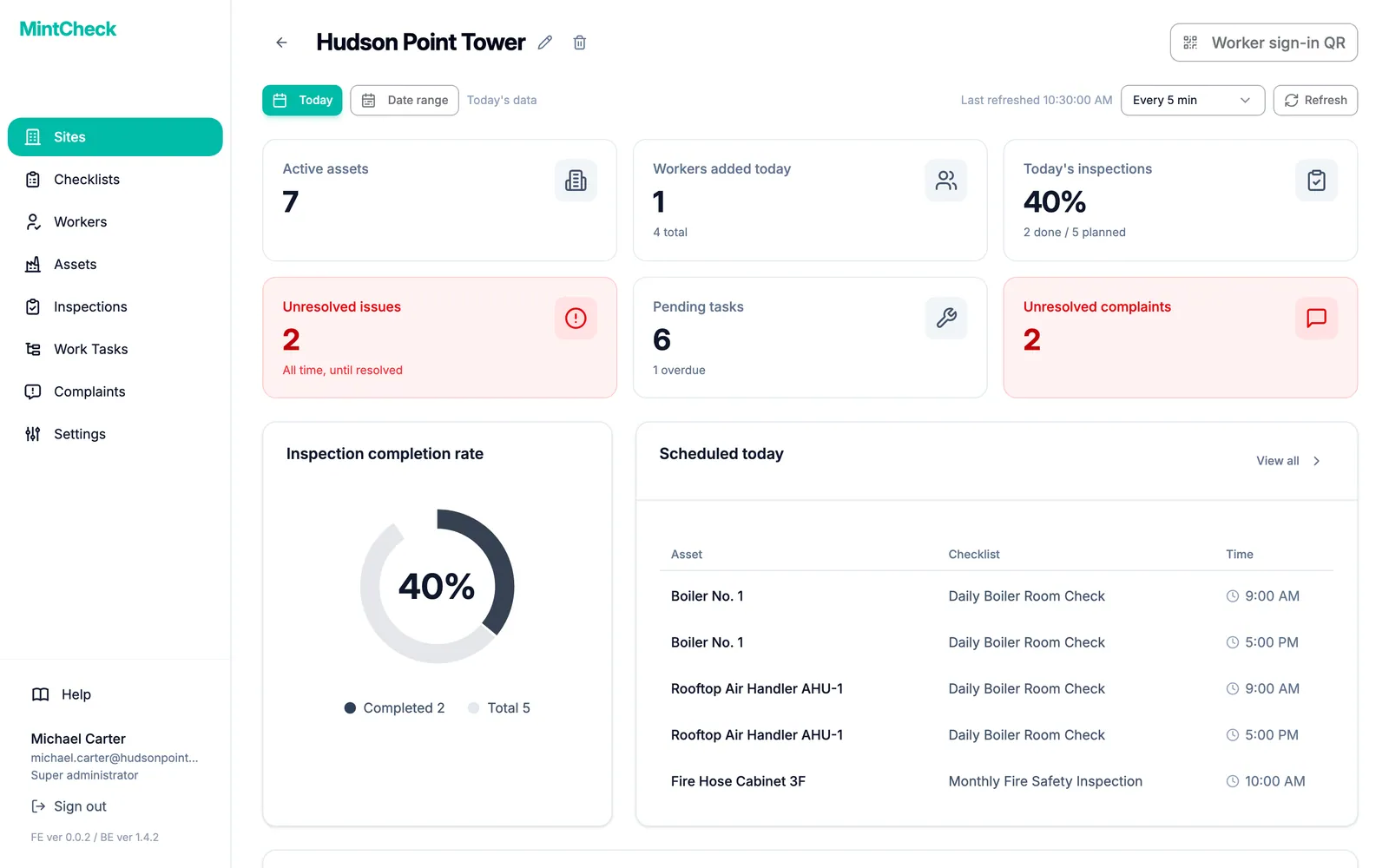
Key terms at a glance
| Term | What it is | Where you manage it |
|---|---|---|
| Site | A building or location you manage | Sites |
| Checklist | A set of inspection items with a schedule | Checklists |
| Asset | Anything you put a QR code on to manage: equipment, a space, a vehicle, or a paper log | Assets |
| Worker | A person who scans QR codes and does the work | Workers |
| Inspection | One completed checklist for one asset | Inspections |
| Work task | A one-off job, such as a repair | Work Tasks |
| Complaint | A message sent by a visitor through a QR code | Complaints |
Who does what
MintCheck has four kinds of users. Each one sees only what they need.
- Super administrator. The person who created the organization. They can see every site and are the only one who can manage the plan and payment card, organization settings, and other administrators.
- Administrator. A colleague added by the super administrator. They manage only the site assigned to them. See Administrators.
- Worker. Scans QR codes on a phone to run checklists and complete tasks. Workers don't use the admin console. See Worker app.
- Visitor. Anyone who scans a complaint QR code, for example a tenant or a customer. Visitors don't need an account.
Where to go next
If this is your first time, start with the Quick start. It walks you through the whole setup in about 10 minutes.
When you want more detail, go to the guide for each area:
- Sites and the site login QR
- Checklists and logbooks
- Assets, QR codes, and the complaint box
- Workers and the worker app
- Daily work: Inspections, Work tasks, and Complaints
- Administration: Settings, Administrators, Plans and billing, and Cancelling your organization's service
- Common questions: FAQ