Work tasks
Create one-off tasks, assign them to an asset, a worker or a tag, and track them until done.
What a work task is
A work task is a one-off job that is not part of a regular checklist. For example: "Replace the filter in air handler 2" or "Fix the broken light in the lobby". You create the task, workers see it on their phones, and they mark it complete with a note and photos.
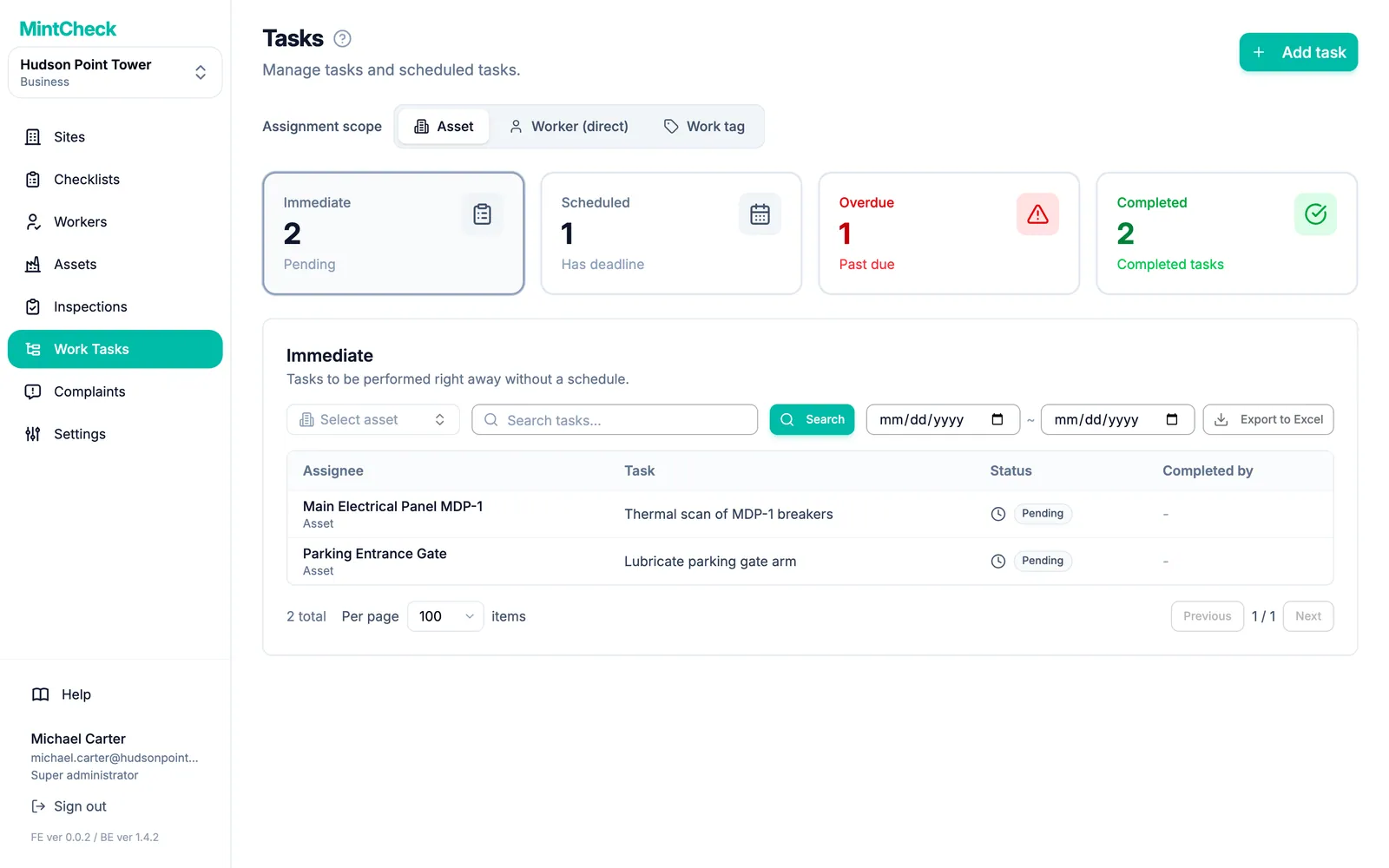
Open Work Tasks in the sidebar to see all tasks for the site you are working in.
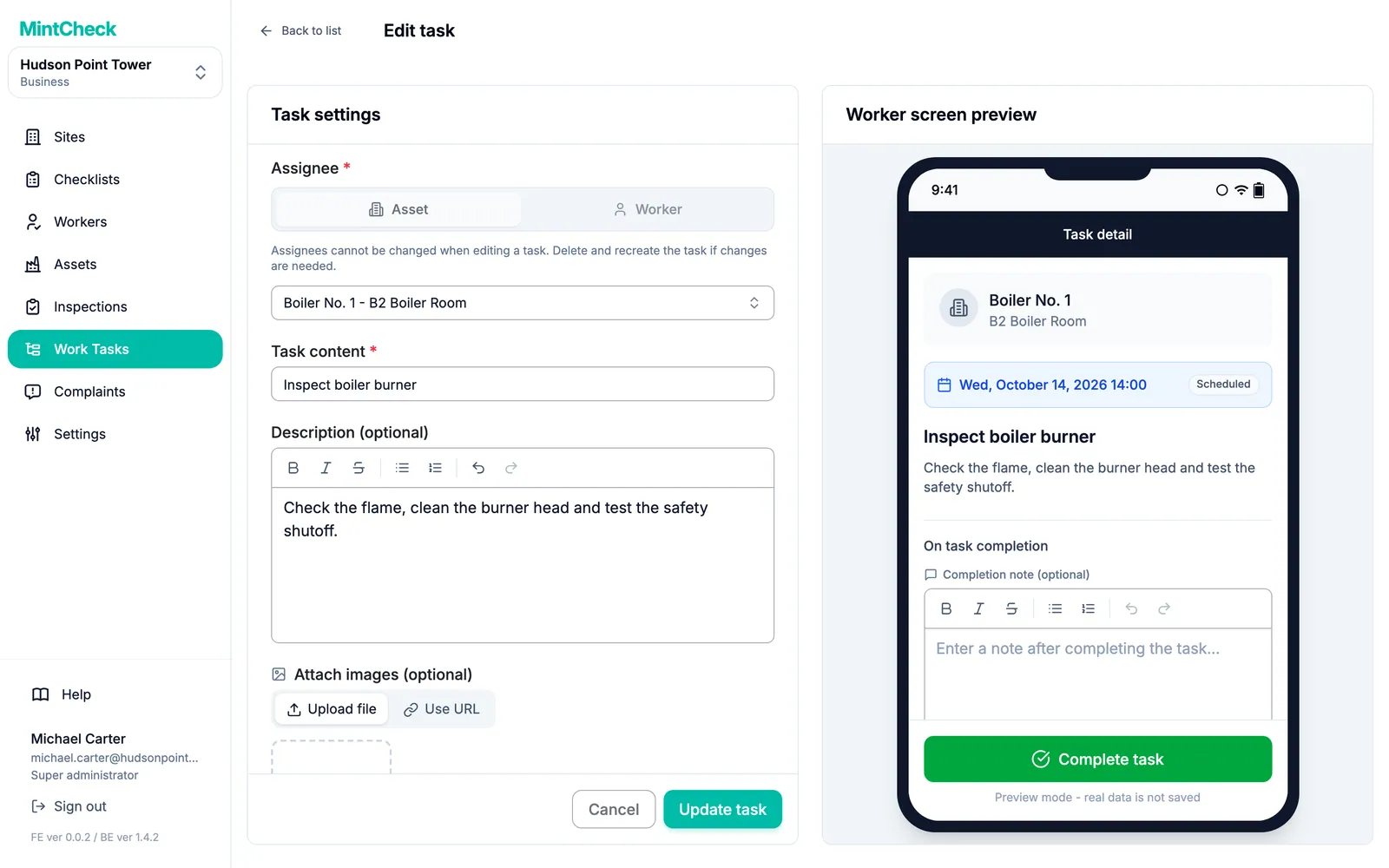
Create a task
- Click Add task at the top right.
- Under Assignee, choose who the task is for: Asset or Worker. The next section explains the options.
- Pick the asset, worker, or tag from the list. You can type to search.
- Enter the Task content. This is the short text workers see first.
- Optionally, add a Description (optional) and Attach images (optional) to explain the job.
- If the job must be done on a certain day, turn on Set schedule. Then choose the Date. The Time (optional) is optional.
- Click Add task. The task appears in the list right away.
The preview next to the form shows how the task will look on the worker's phone.
A task without a schedule is an immediate task: it should be done as soon as possible. A task with a schedule has a due date. If it is not completed by then, it becomes overdue.
Choose who does the task
There are three ways to assign a task:
- To an asset: choose Asset. Any worker who scans that asset's QR code sees the task. This is the simplest option and works on every plan.
- To one worker: choose Worker, then Select worker directly. Only that worker sees the task.
- To a work tag: choose Worker, then Select by work tag. Everyone who has that tag sees the task, and any one of them can complete it. Tags are set on each worker. See Workers.
Not every plan includes every option:
| Assign to | Free and pay as you go | Pay as you go with the direct assign add-on | Business and Master |
|---|---|---|---|
| An asset | Yes | Yes | Yes |
| One worker | No | Yes | Yes |
| A work tag | No | No | Yes |
If your plan does not include an option, it shows a lock icon. When you click it, an upgrade window explains what is needed. A super admin can click View plans to open the plans, or start a free Business trial if the organization has not used one yet. Sub-admins see a message asking them to contact the super admin. See Plans and billing for prices.
Find and filter tasks
At the top of the list, the Assignment scope switch chooses which kind of task you see: Asset, Worker (direct), or Work tag.
The four cards below it split tasks by state. Click a card to see its list:
- Immediate: open tasks without a schedule.
- Scheduled: open tasks with a due date that has not passed yet.
- Overdue: open tasks whose due date has passed. The list shows how many days late each one is.
- Completed: tasks that are done.
To narrow the list, type part of a task name and click Search. In the asset view, you can also pick one asset. Click Reset to clear the filters.
You can also choose a Start date and End date. The list updates right away. The date the period looks at depends on the card you opened:
- Immediate: the date the task was created.
- Scheduled and Overdue: the due date.
- Completed: the date the task was completed.
Export and manage tasks
Click Export to Excel to download the tasks you are looking at as an Excel file. The file follows the card, the scope, and the filters you have chosen, and includes all pages. For completed tasks, it also lists who completed each task and their completion note.
Click a task to open Task detail. From there you can:
- Edit: change the content, photos, or schedule.
- Mark complete: close the task yourself. It is recorded as completed by Admin, not by a worker.
- Revert to pending: reopen a completed task. The completion note and photos are not kept.
- Delete: remove the task. A deleted task cannot be recovered.
How workers see tasks
Workers see tasks in the MintCheck worker screens on their phones:
- Asset tasks appear when a worker scans the asset's QR code, next to the checklists for that asset.
- Tasks for a worker or a tag appear on the worker's My tasks tab, and also when they scan any asset at the site.
The worker opens the task, adds an optional note and photos, and taps Complete task. The task then moves to Completed in your list. See The worker app for the worker's side.