CCTV inspection checklist
This is a weekly check of a CCTV system: does every camera show a picture, is it recording, and are the lenses clean and aimed the right way? Print the checklist below, or use the same template on a phone in MintCheck.
CCTV check
WeeklyImage, recording and lens
- Site and location
- Date
- Checked by
| Item | Result |
|---|---|
| Image output / display | |
| Recording status | Recording normallySome channels faultyNot working |
| Lens clean & aimed | |
| Notes | |
| Overall result | NormalAbnormal |
Template from MintCheck · mintcheck.today
How to do each check
Footage can count as personal data, so only people who are allowed to view it should do this check.
Image output and display
Open the monitor or viewing software and look at every channel. Each one should show a clear picture with the right date and time.
Recording status
Play back a short clip from the day before on each channel. A recorder can look as if it is working when it has stopped recording, so a live picture isn't enough.
- Recording normally: the clip plays on every channel.
- Some channels faulty: one or more channels have no clip or have gaps. Write down which ones.
- Not working: nothing was recorded, or the recorder shows a disk error.
Lens clean and aimed
Compare each view with how it should look. Look for dirt, cobwebs and water drops on the lens, for signs or plants in the way, and for cameras that have been knocked out of position.
Notes
Write down anything else, such as a storage warning, a wrong date or time, or a new blind spot. Describe a problem in words rather than taking a photo of the footage.
How often to check
This template is set to weekly. Rules on signs, on who may view footage and on how long it may be kept differ by country, so check the ones that apply to you, and check that the recorder's retention setting matches them.
Servicing, replacing disks and work at height are for qualified technicians.
If something is wrong
- Mark it on the checklist and write down the channel or camera.
- Tell the person responsible for security right away, because a channel that isn't recording leaves no footage if something happens.
- Call your service company. Don't format a disk or change the settings yourself, because you could lose footage.
- Check it again after the fix and record the result.
Use this checklist in MintCheck
- In Checklists, click Add checklist and pick the CCTV template. Its items and weekly schedule are filled in, and you can change them before you save.
- In Assets, click Add asset, pick the CCTV template and link the checklist. Add one asset for each recorder, or one for each camera if you want a separate record for each.
- Click Print QR and put a label on or next to the recorder or monitor.
- Workers scan the label, answer the items and mark the result Normal or Abnormal. They can attach photos.
To run the check on a set day, choose Weekly and pick the day. The site dashboard then shows completed inspections against the planned number and how many problems are still unresolved, so a missed week stands out. An Abnormal result stays Unresolved until a re-inspection confirms the fix.
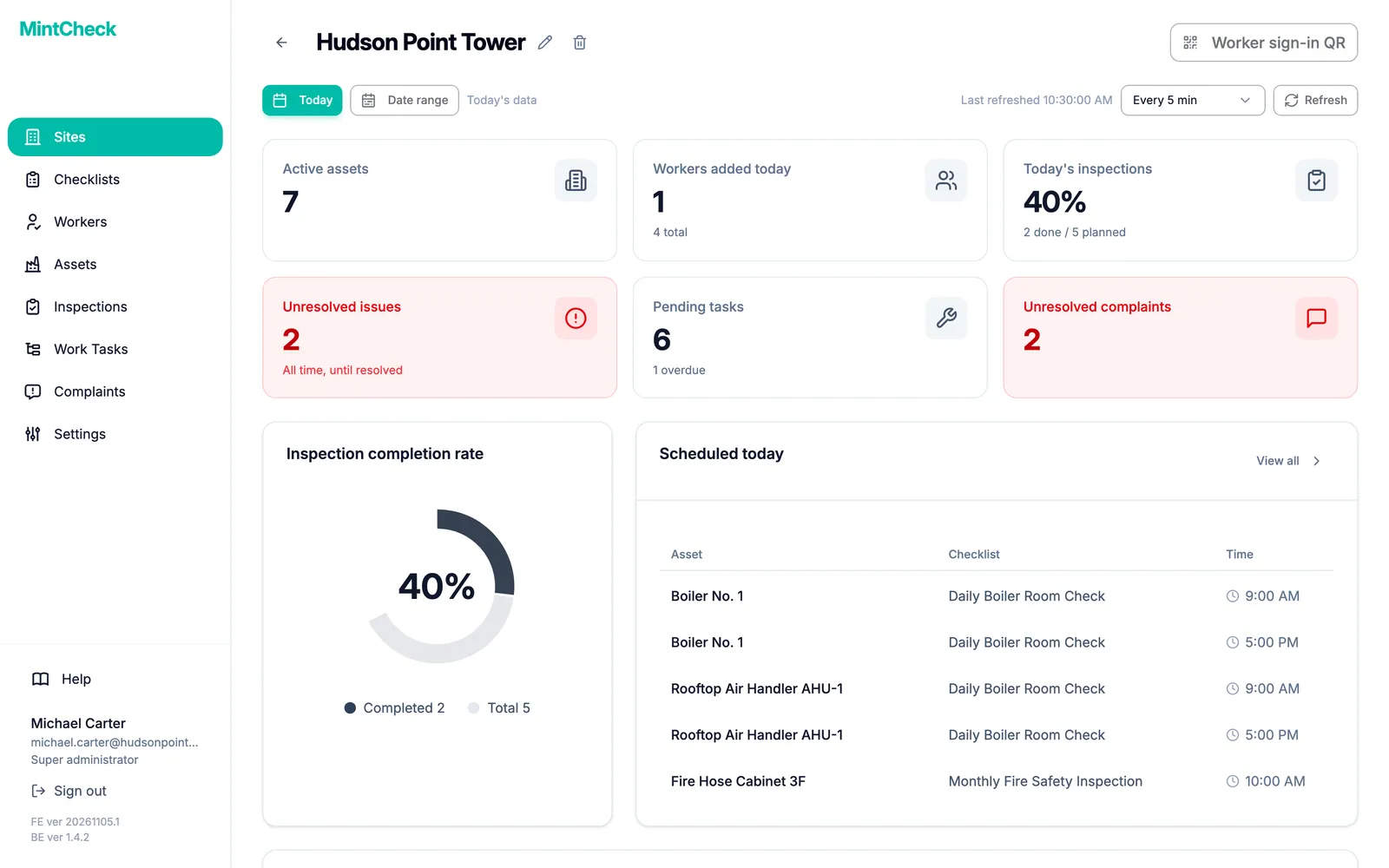
MintCheck is free for up to 5 assets with no credit card, so you can try this with a few recorders or cameras.
Common questions
How often should CCTV be checked?
This template uses a weekly check as a starting point. Your company's security rules and the rules where you are may ask for something different.
How can I tell whether CCTV is really recording?
Play back a short clip from the day before on each channel. A live picture only shows that the camera is working, not that the footage is being saved.
How long should CCTV footage be kept?
It depends on the rules where you are and on why you use CCTV. Some rules set a limit on how long you can keep it, so check them and set the recorder to match.
Who can do this check?
Someone who is allowed to view the footage can usually do it once they have been shown how. Servicing and work at height are for qualified technicians.
Can I use one checklist for all our cameras?
Yes. In MintCheck, one checklist can be linked to many assets, and each asset keeps its own QR code and its own records.
Related features
- ChecklistsBuild inspection checklists from ready-made templates, with check, multiple choice, text and photo items, and schedule them daily, weekly, monthly or yearly.
- Site dashboardSee today's completion rate, unresolved issues, open tasks and complaints for each site on one screen, refreshed automatically.