Floor plans with asset pins
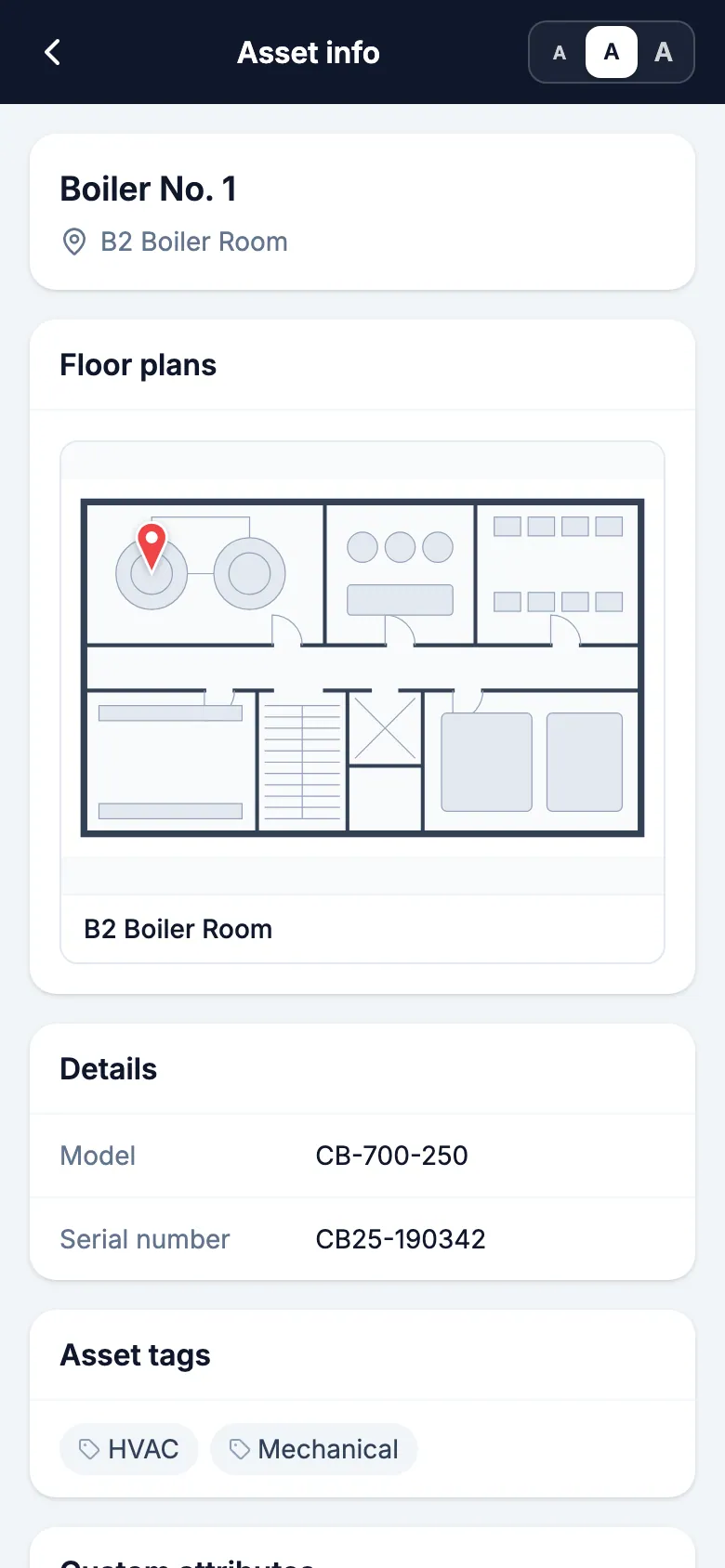
In a large building, workers can lose time looking for an asset. In MintCheck you upload a floor plan of where the asset is and drop a pin on its location. Workers open it from the asset info screen on their phone and zoom in to find the asset.
How it works
- 1
Upload a floor plan
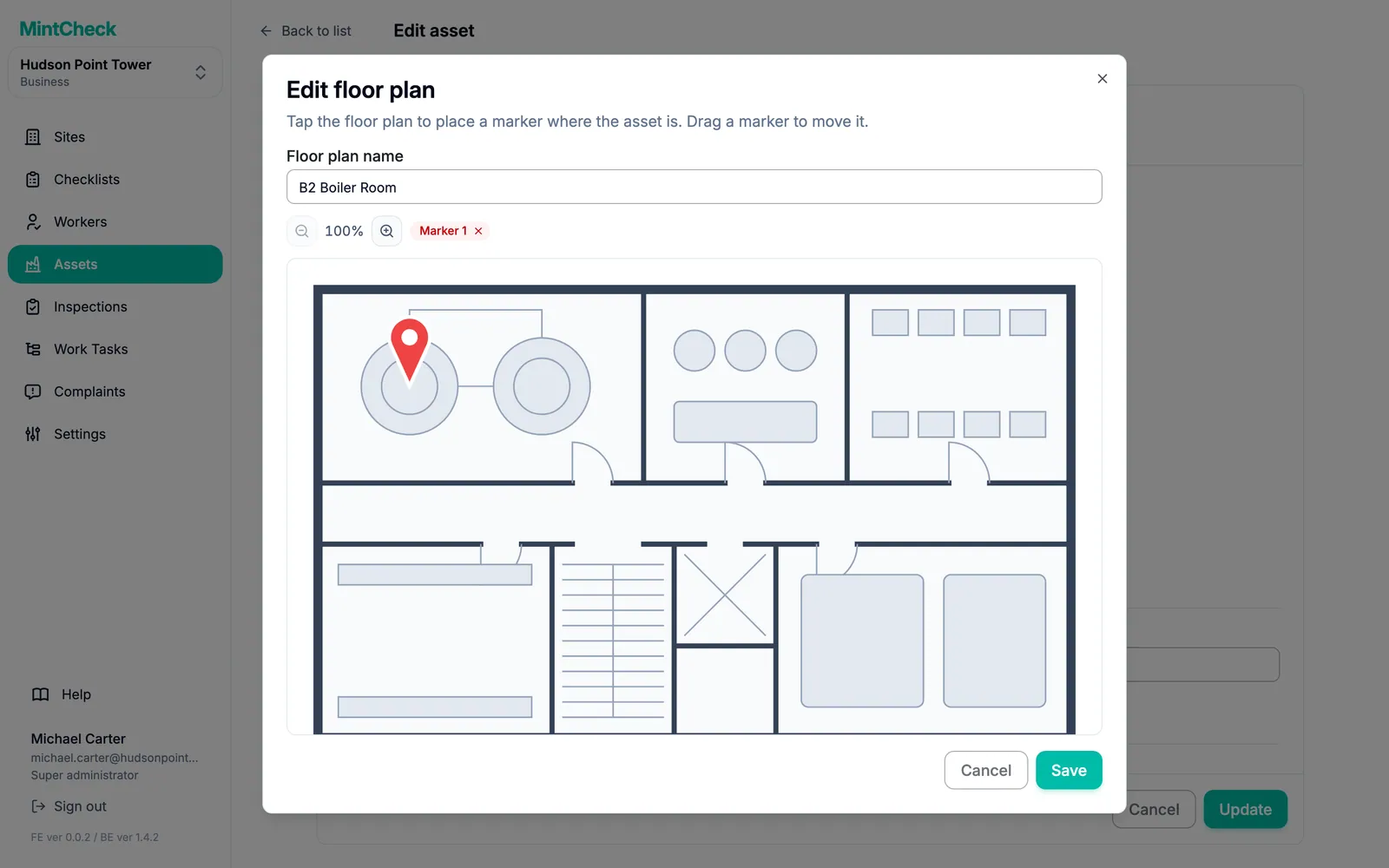
On the asset form, add one or more floor plan images and give each one a name, such as "3rd floor plan".
- 2
Drop pins
Click the asset's location to place a pin, drag it to move it, and zoom in to place it precisely.
- 3
Workers find the asset
The floor plan with its pins appears on the asset detail page and on the worker's Asset info screen, where it opens full screen and can be zoomed with two fingers.
Good to know
- Up to 10 floor plans per asset and 20 pins per floor plan.
- Only signed-in workers and administrators can see floor plans.
- Floor plans never appear on the public complaint or logbook pages.
- Pins can be moved later with Edit markers.
Questions
Who can see the floor plans?
Only signed-in workers and administrators. Visitors who open the complaint box or a public logbook from a QR code never see them.
How many floor plans can an asset have?
Up to 10 floor plans per asset, each with up to 20 pins.
Can I move a pin later?
Yes. Open the asset, choose Edit markers on the floor plan, drag the pin and save the asset.